Figma Vectorize Feature: Transform Images Into Editable Vectors Instantly

The latest update from Figma is changing the way designers work with images, logos, icons, and illustrations. With the new Vectorize feature, users can now convert raster images into editable vector graphics directly inside Figma — without needing third-party software.
This feature is especially useful for designers, UI/UX professionals, branding experts, and digital creators who regularly use AI-generated graphics from tools like Midjourney and OpenAI ChatGPT.
In this article, we’ll explore how the Figma Vectorize tool works, its best use cases, advantages, limitations, and why it can significantly improve your design workflow.
What Is Figma’s Vectorized Feature?
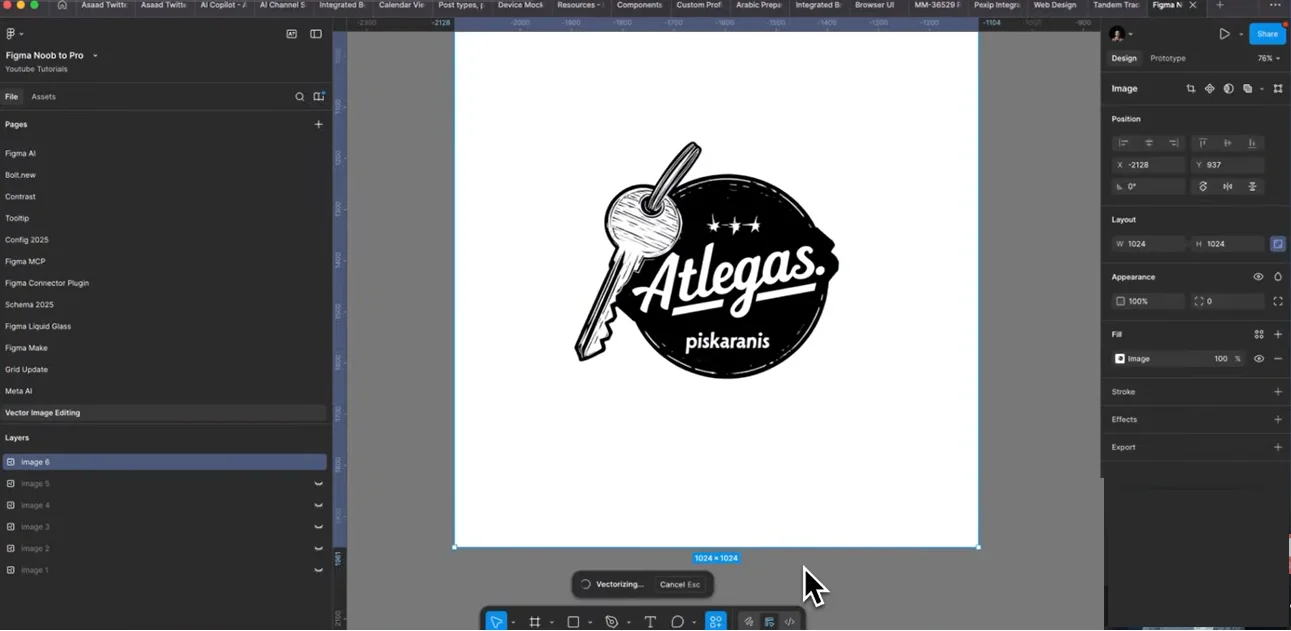
Figma’s Vectorize feature allows users to convert images into scalable vector graphics directly within the platform. Instead of exporting images to external tools like Adobe Illustrator, designers can now:
- Convert logos into vectors
- Edit AI-generated illustrations
- Create scalable icons
- Modify vector colors and shapes
- Simplify design workflows
The process is quick and beginner-friendly. Users simply paste an image into Figma, select it, and click Vectorize.
Why This Feature Matters for Designers
Vector graphics are essential in modern design because they can scale without losing quality. Traditionally, converting images into vectors required separate software and advanced editing skills.
Now, with Figma handling this process internally, designers can:
- Save time
- Reduce dependency on multiple tools
- Edit AI-generated graphics faster
- Create scalable assets instantly
- Improve workflow efficiency
This update is especially valuable for teams working on branding, UI/UX design, web graphics, mobile applications, and digital products.
Best Use Cases for Figma Vectorize

1. Convert AI-Generated Logos Into Editable Vectors
One of the strongest use cases is converting AI-generated logos into editable vector files.
Many designers create logos using AI tools like Midjourney, but those logos are usually image-based and difficult to edit. With Figma Vectorize, you can instantly transform them into editable vector graphics.
Benefits:
- Easily change logo colors
- Resize logos without quality loss
- Edit shapes and paths
- Use logos for websites, apps, and print designs
Although the feature may occasionally introduce small inaccuracies, the overall results are surprisingly good.
2. Vectorize Illustrations and Artwork
The tool also performs well with illustrations and hand-drawn graphics. Designers can import illustrations and quickly convert them into editable vectors.
This is particularly useful for:
- Character illustrations
- Sketch art
- Digital drawings
- Concept designs
- Social media visuals
While some fine details may require manual adjustments afterward, the overall conversion quality is impressive.
3. Create Custom Icon Libraries
Custom icons are important for maintaining a unique brand identity in apps and websites. Designers can now generate icons using AI tools and convert them directly into vectors within Figma.
Advantages:
- Build unique icon packs
- Customize icon colors
- Maintain consistent visual style
- Scale icons for responsive design
However, icons with excessive detail may produce less accurate results and could require cleanup.
4. Convert Sketches Into Vector Graphics
Another practical use case is converting sketches or wireframe-style artwork into vectors.
This is useful for:
- UI wireframes
- Product mockups
- Storyboarding
- Creative concepts
- Hand-drawn design ideas
The feature handles simple sketch elements effectively and can speed up the ideation process.
5. Transform Isometric Illustrations
Figma Vectorize also works well with isometric illustrations and detailed design compositions.
Once vectorized, users can:
- Edit colors
- Modify components
- Resize artwork freely
- Reuse assets across projects
This makes it highly valuable for:
- SaaS illustrations
- Website hero sections
- Product visualizations
- Presentation graphics
Limitations of the Figma Vectorize Tool

While the feature is impressive, it’s not perfect yet.
Gradient Handling Issues
The biggest limitation is gradient rendering. The tool struggles with:
- 3D graphics
- Gradient-heavy artwork
- Complex lighting effects
Instead of recreating smooth gradients, Figma often replaces them with multiple solid fills, which can produce inconsistent results.
This issue is expected to improve as the feature evolves.
Fine Detail Accuracy
Highly detailed graphics or complex icons may contain:
- Missing elements
- Distorted shapes
- Imperfect path tracing
In such cases, minor manual editing may still be required after vectorization.
How to Use Figma Vectorize
Using the feature is simple:
- Copy or import an image into Figma
- Select the image
- Click on Vectorize
- Adjust color settings if needed
- Edit the generated vector graphic
Optional tools include:
- Background removal
- Resolution enhancement
- Color optimization
Who Should Use This Feature?
This feature is ideal for:
- UI/UX designers
- Graphic designers
- Branding agencies
- Web design companies
- Mobile app developers
- Social media designers
- Freelancers
- Creative teams
It is particularly useful for designers who frequently work with AI-generated assets.
Final Thoughts
Figma’s new Vectorize feature is a major step forward in simplifying design workflows. The ability to convert logos, illustrations, icons, sketches, and AI-generated artwork into editable vectors directly inside Figma can save designers significant time and effort.
Although the tool still has some limitations — especially with gradients and complex detailing — its current performance is already highly impressive.
As AI-generated design assets continue to grow in popularity, features like this will become increasingly important for modern designers and creative agencies.
If you regularly work with visuals, branding assets, or UI graphics, this update from Figma is definitely worth exploring.



Accepted Payments

