How to Animate AI Text Responses in Figma
AI-powered interfaces are everywhere — from chatbots to smart assistants. But when it comes to designing AI prototypes, one thing often feels unrealistic: static AI responses.
In real-world tools like ChatGPT or Bard, AI responses appear word by word, creating a natural and engaging experience. If you’re designing AI workflows in Figma, showing instant full text can break that realism.
In this guide, we’ll walk through an easy and fast way to animate AI text responses word by word in Figma using a free plugin — perfect for demos, prototypes, and presentations.
The Problem with Static AI Text in Prototypes
When designers build AI-related screens, the response text usually:
- Appears instantly
- Feels fake or staged
- Doesn’t match real AI behavior
This can reduce the impact of:
- Client demos
- Product walkthroughs
- Investor presentations
- UX testing sessions
Modern AI products stream responses gradually, and your prototypes should reflect that.
The Simple Solution: Typist Plugin for Figma
Instead of manually animating text or using complex workarounds, there’s a free Figma plugin called Typist that solves this problem in seconds.
With Typist, you can:
- Animate text word by word
- Control typing speed
- Randomize animation timing
- Create reusable components
All without writing a single line of code.
How to Use Typist Plugin in Figma (Step-by-Step)
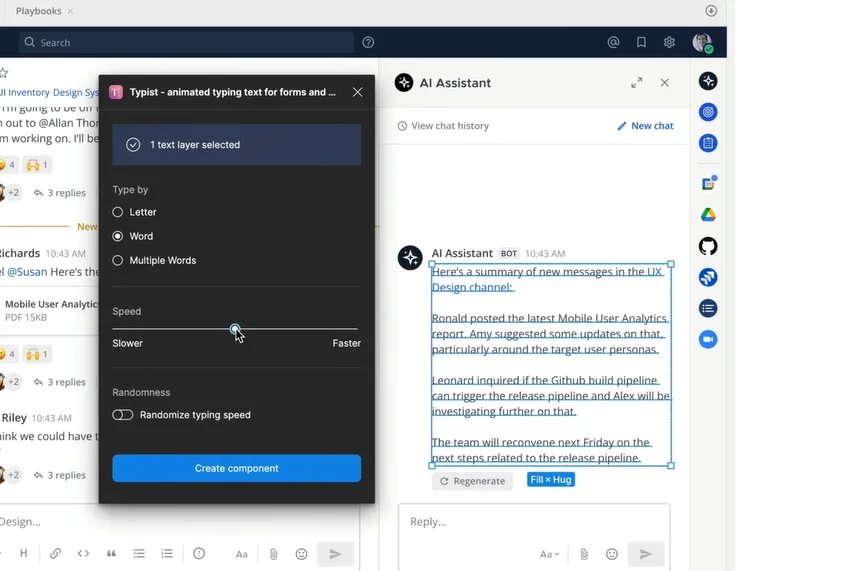
1. Select Your AI Text
Start by selecting the text layer that represents your AI-generated response inside your Figma design.
2. Open the Typist Plugin
- Open Figma plugins
- Search for Typist
- Launch the plugin
3. Configure the Animation
Inside the plugin, you can:
- Animate text word by word
- Choose a medium or random typing speed
- Allow multiple words to appear at once (optional)
Once set, click Create Component.
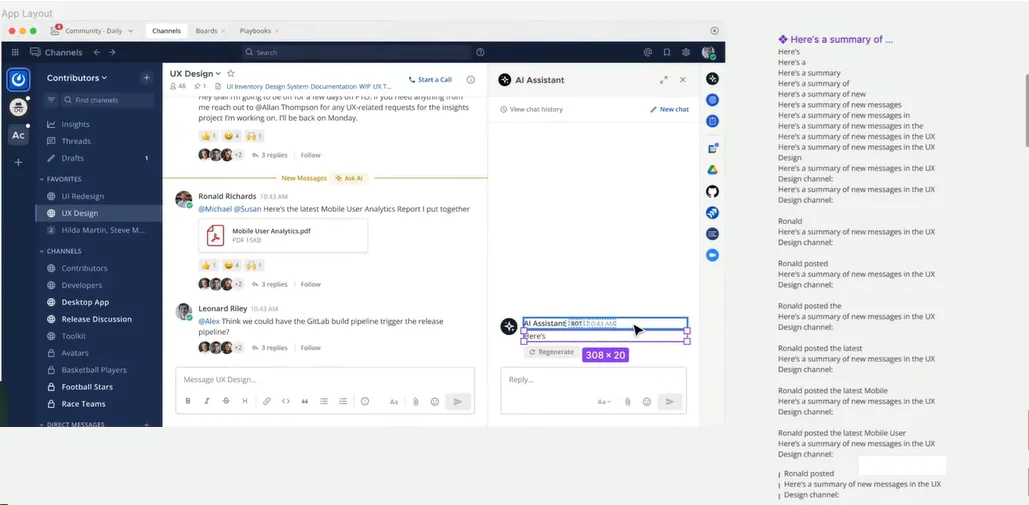
4. Place the Animated Component
The plugin automatically creates a component:
- Move it to your components folder (to keep files clean)
- Place the first instance where your AI response appears
5. Preview the Prototype
Restart your prototype, trigger the AI action (for example, “Summarize new messages”), and watch the response generate naturally — word by word.
That’s it. No hacks. No manual animations.
Why This Matters for AI Product Designers
Animating AI responses correctly:
- Makes prototypes feel realistic
- Improves storytelling in demos
- Helps stakeholders understand product behavior
- Enhances overall UX credibility
If you’re working on AI chat interfaces, summarization tools, or streaming responses, this small detail can make a big difference.
Perfect for AI Demos, SaaS Products, and UX Case Studies
Designers working on AI SaaS products built with professional SaaS development services, internal AI tools, concept demos, and UX portfolios will find this approach extremely useful and especially when speed matters.
Final Thoughts
At The Small Square, we often emphasize small UX details like these that elevate prototypes from “good” to production-ready experiences. These techniques are especially valuable when designing modern AI-driven interfaces.
Creating realistic AI interactions in Figma doesn’t have to be complicated. With the Typist plugin, you can simulate real-time AI responses in just a few clicks. If you’re designing AI workflows, chat experiences, or demo prototypes, this plugin will save you time and instantly improve realism.
Small details. Big impact.



Accepted Payments


